Image to Image AI logoImage to Image AI
  • Home

Guest

Save your creations

Credits—
  1. Home

Image to Image AI Generator

A fresh take on your image.

Turn an existing photo into something new with Image to Image AI. Describe the look you want and explore fresh results in seconds. From a personal portrait to a visual concept, give your ideas a starting point you can actually see.

Start Creating with Image to Image AI
  • No watermark
  • No installation
|
3
Checking your sign-in status…

Image to Image AI: Before & After

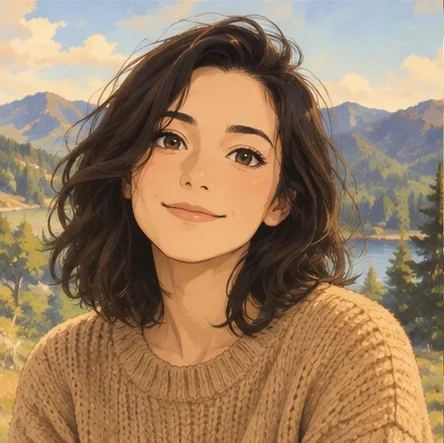
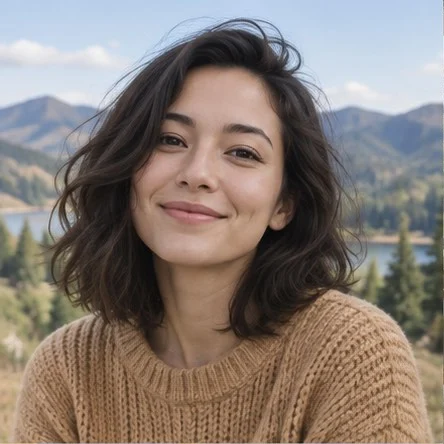
Image to image AI result example: an outdoor portrait restyled as an anime illustrationOriginal outdoor portrait photo before anime restylingBeforeAfter
Portrait restyling
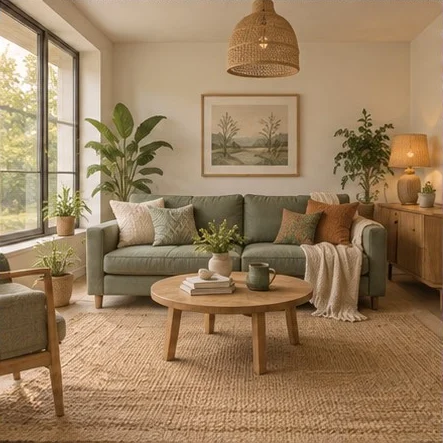
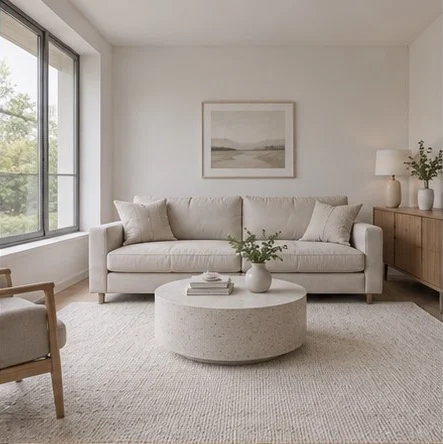
Image to image AI result example: a living room restyled with warm wood and green plantsOriginal minimal beige living room before interior restylingBeforeAfter
Room transformation
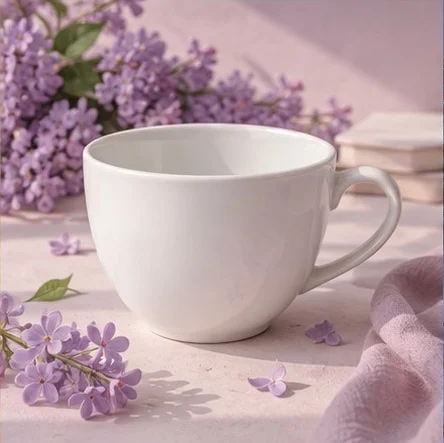
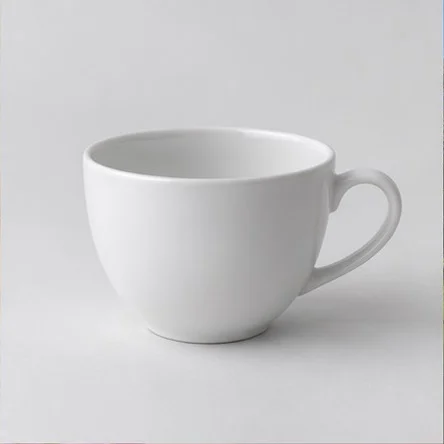
Image to image AI result example: a cup placed in a floral product settingOriginal cup photo on a plain white backgroundBeforeAfter
Product scenes
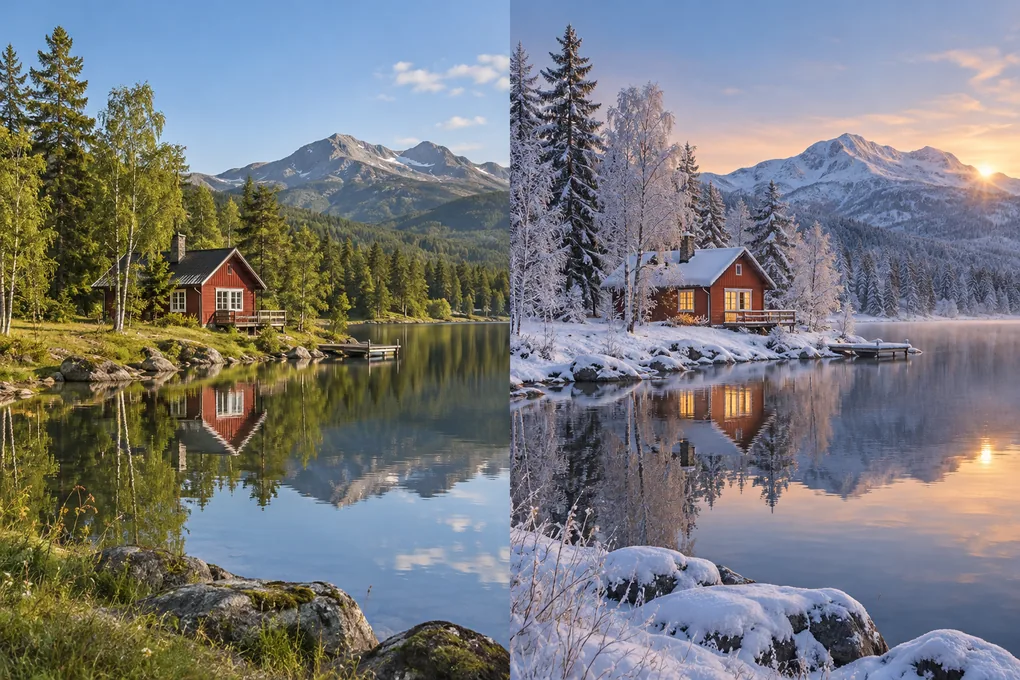
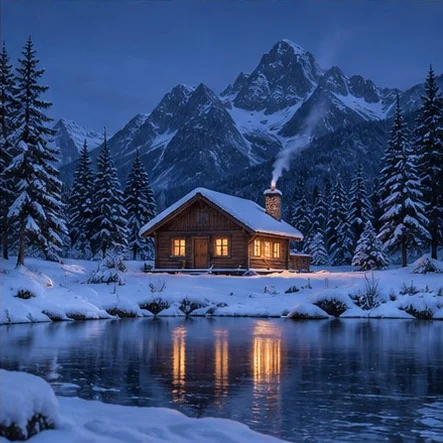
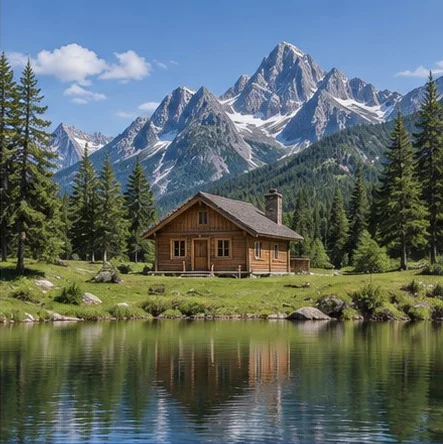
Image to image AI result example: a summer cabin transformed into a snowy winter evening sceneOriginal summer photo of a cabin beside a lakeBeforeAfter
Seasonal atmosphere

What Is Image to Image AI?

Image to image AI creates a new picture from a reference image and a text prompt. The reference guides the subject, composition, or colors, while your instructions describe the changes. Use it to restyle a portrait, explore a different room, or rethink a product setting. It generates a new interpretation, so details can change even when you ask to preserve them.

How to Use Image to Image AI Online

Create with image to image AI in three simple steps.

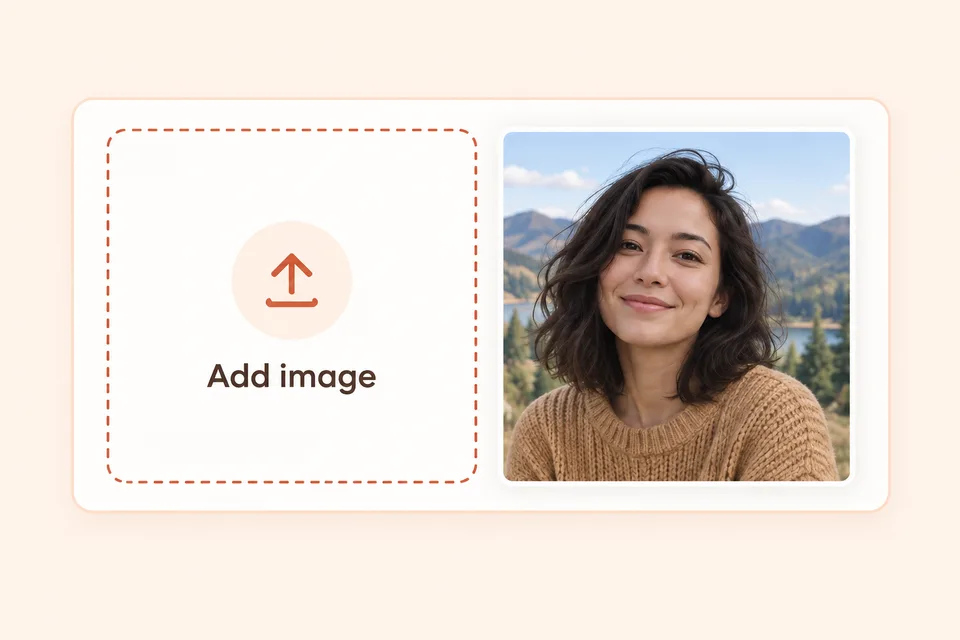
  1. Image to image AI upload illustration: an outdoor portrait beside an Add image area.
    01

    Add Your Image

    Sign in, then upload a photo or choose one from your library.

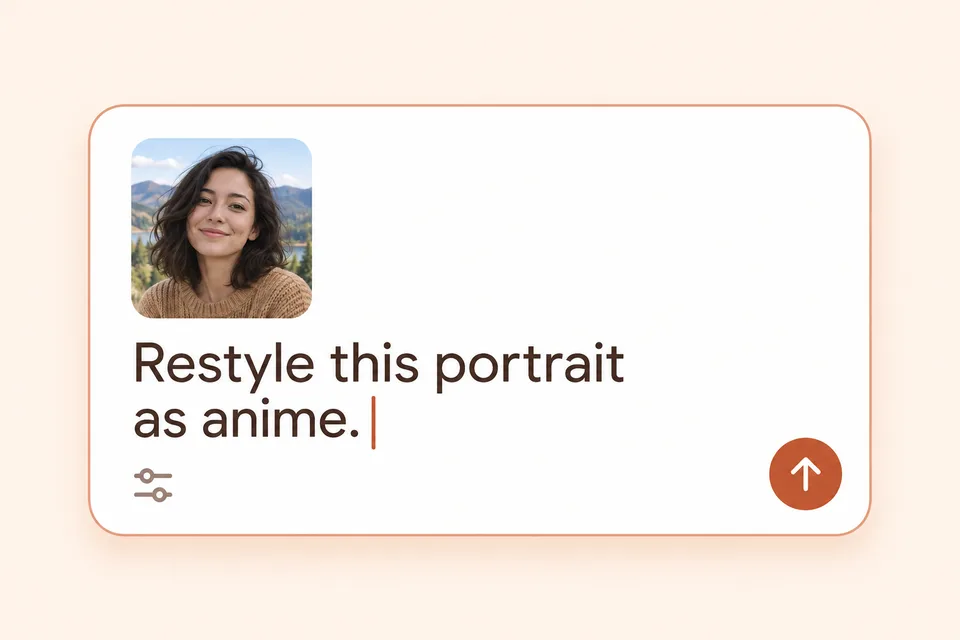
  2. Prompt illustration with a portrait reference and the instruction: Restyle this portrait as anime.
    02

    Describe the Change

    Describe the changes you want, then choose a model and settings.

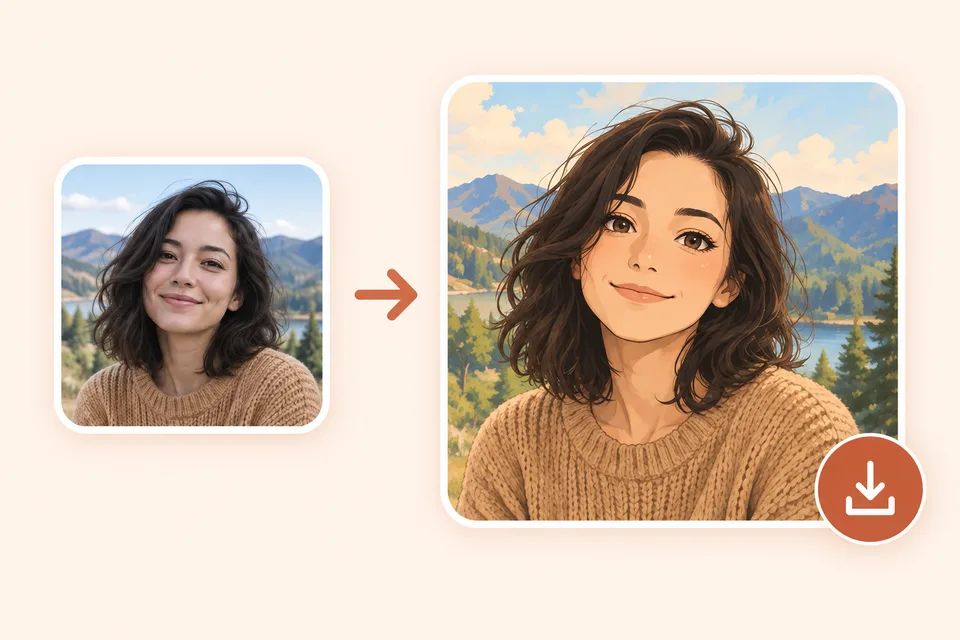
  3. Image to image AI result example: a portrait transformed into anime beside a download icon.
    03

    Generate and Download

    Generate, open the result, and download the image you want to keep.

AI Image to Image — Any Style, One Click

A reference can lead in many directions. Explore these creative uses for image to image AI, then describe your own variation in the prompt.

Turn Photo into Anime

Give a portrait expressive eyes, illustrated shading, and the atmosphere of an animated scene. With image to image AI, you can ask for soft pastel colors, dramatic lighting, or a simple character illustration. A clear face and an uncluttered background give your request a more useful visual starting point.

Turn Your Photo into Anime
Image to image AI comparison: a sunlit cafe portrait beside an anime illustration of the same woman.BeforeAfter

Image to Pixel Art

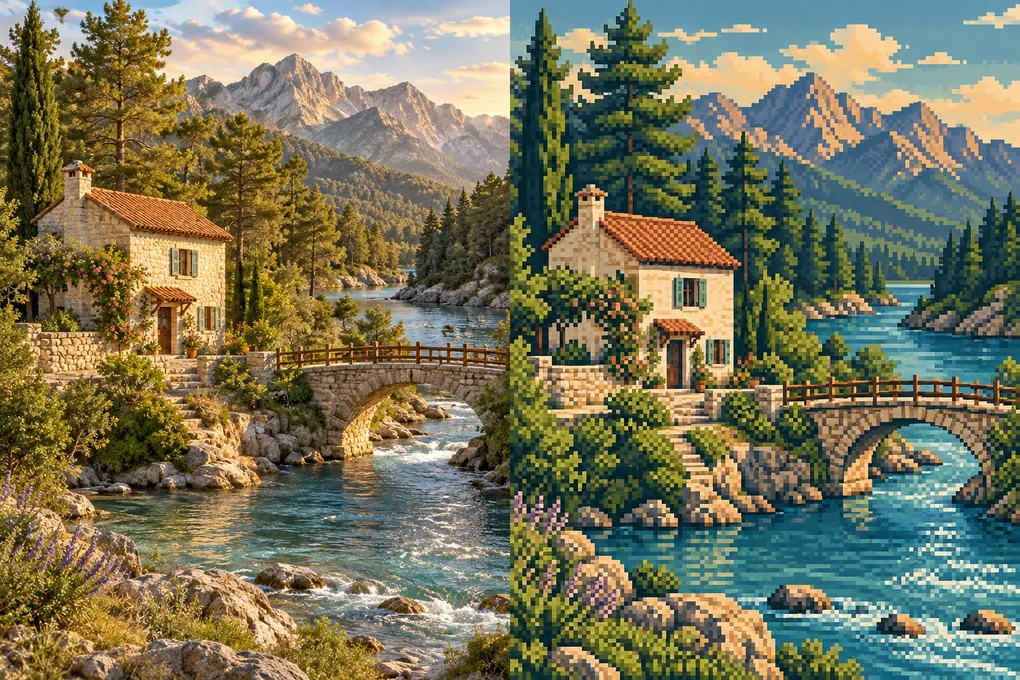
Reimagine a pet, character, or landscape with chunky pixels and a limited color palette. Describe the retro look you want, such as a handheld adventure or an arcade scene. Use image to image AI to explore bold silhouettes for an avatar or atmospheric backgrounds inspired by classic adventure games.

Create Pixel Art
Image to image AI comparison: a riverside cottage and stone bridge photo beside a colorful pixel art version.BeforeAfter

AI Style Transfer with Image to Image AI

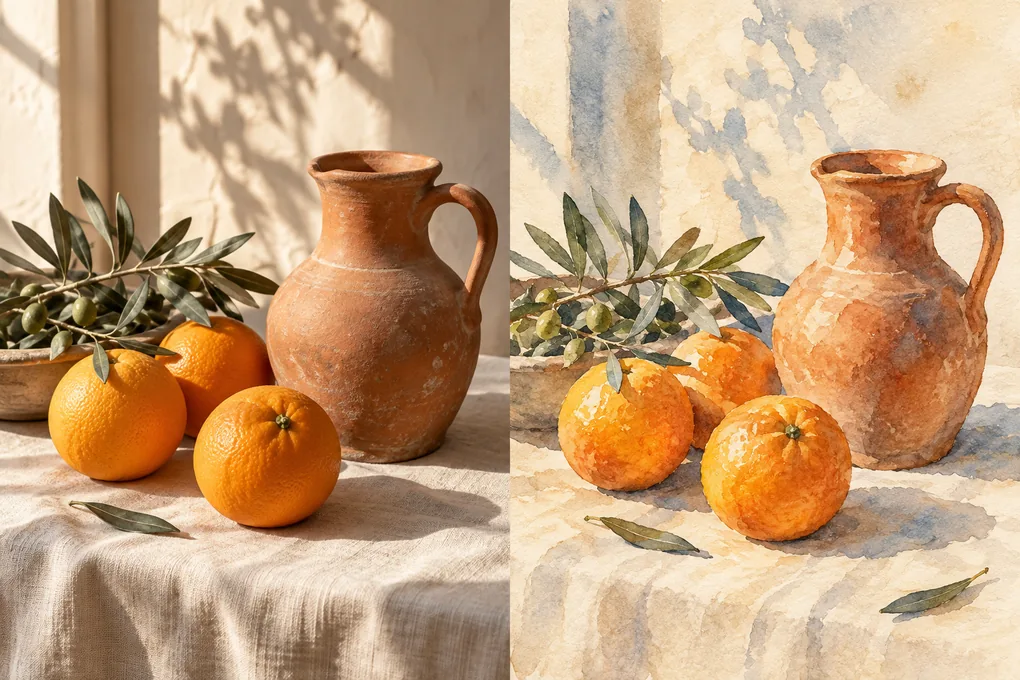
Explore watercolor washes, pencil marks, oil painting textures, or clean graphic shapes. Image to image AI lets you describe the visual qualities that matter instead of settling for a preset filter. Specify brushwork, contrast, and color relationships to give the transformation a clearer artistic direction.

Try AI Style Transfer
Image to image AI style transfer example: oranges and a terracotta pitcher shown as a photo and a watercolor painting.BeforeAfter

Product Backgrounds

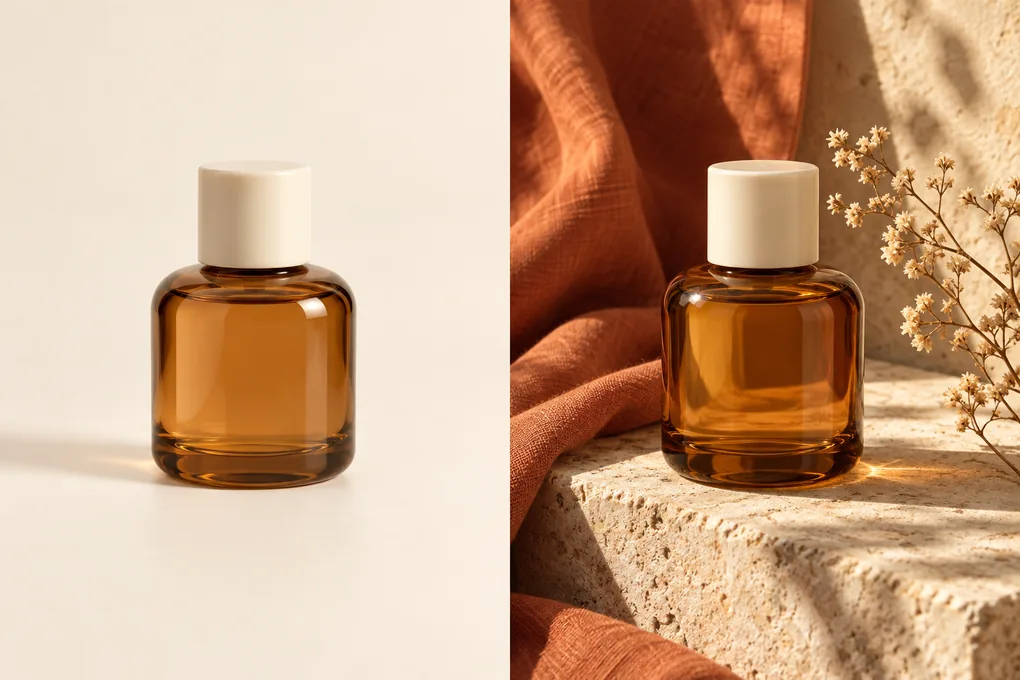
Picture a ceramic mug on a sunny breakfast table or a perfume bottle against dark stone. Image to image AI can help you explore a setting before arranging a shoot. Compare different surfaces, lighting directions, and background colors to choose a visual direction for your next campaign or presentation.

Create a Product Background
Image to image AI product background example: an amber perfume bottle on a plain background and styled with limestone and terracotta fabric.BeforeAfter

Room Restyling

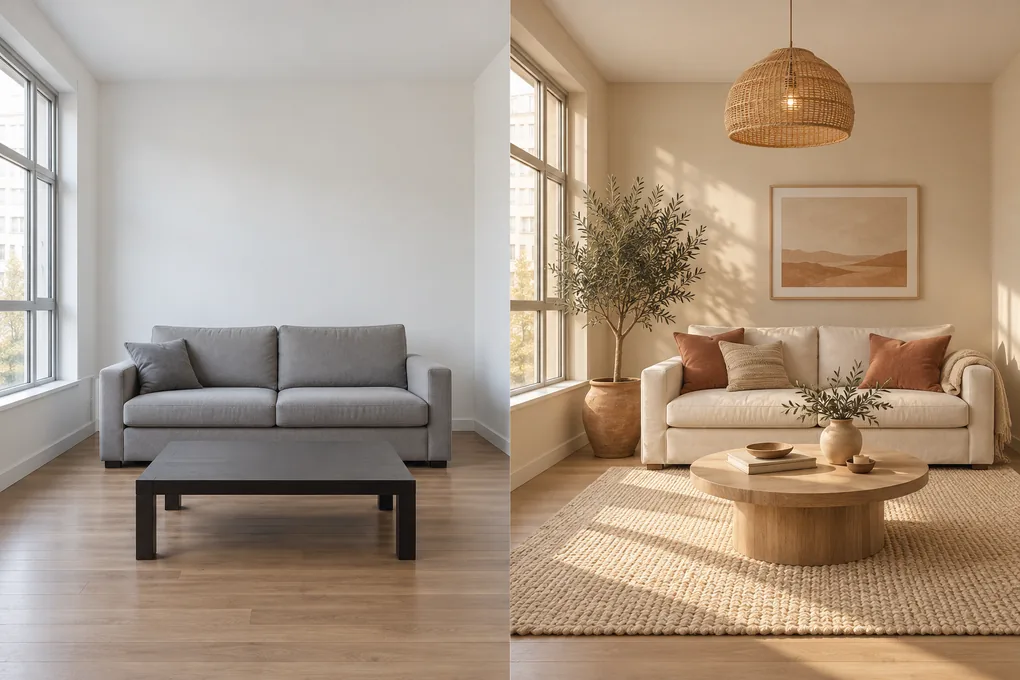
See how warmer lighting, natural materials, or a different color scheme might change the feeling of a room. Use image to image AI for interior inspiration and mood exploration. Describe the features you want to retain alongside the changes, whether that means wooden floors, pale walls, or softer furnishings.

Restyle Your Room
Image to image AI room restyling example: a gray living room beside a warm interior with a cream sofa and oak furniture.BeforeAfter

Seasonal Landscapes

Turn a familiar outdoor scene into an autumn afternoon, a snowy morning, or a rainy evening. With image to image AI, weather and atmosphere become part of your creative brief. Describe the season, light source, and overall mood together so the scene has a consistent direction.

Transform Your Landscape
Image to image AI landscape comparison: the same lakeside cabin in green summer scenery and a snow-covered winter scene.BeforeAfter

Write Better Image to Image AI Prompts

Build your prompt around the subject, the change, and the details to preserve. Copy one of these starting prompts and adapt it to your own reference image.

Anime Portrait

Keep the pose and framing; change the illustration style.

Restyle this portrait as an anime illustration. Keep the person's pose, hairstyle, and centered framing. Use clean linework, soft cel shading, warm afternoon light, and a simple pastel background.

Pixel Art Landscape

Keep the scene layout; simplify textures into visible pixels.

Turn this landscape into pixel art for a retro adventure game. Keep the cottage, bridge, and river in their original positions. Use a limited color palette, crisp pixel edges, and simplified shadows.

Product Background

Keep the product recognizable; build a new setting around it.

Place this perfume bottle on pale limestone beside folded terracotta fabric. Keep the bottle shape and amber glass recognizable. Add soft side lighting, gentle shadows, and a clean background with space around the product.

When refining image to image AI results, change one instruction at a time. Review faces, lettering, and product details before using the image in a finished project.

Choose a Model for Image to Image AI

Open the model selector above and match the available controls to your project. These checks help you choose without assuming every model works the same way.

Reference Capacity

For image to image AI, a portrait may need only one reference. For several views of a product, check the model's reference limit and select only the images it needs.

Output Settings

Choose a square, portrait, or landscape ratio for the intended layout. If resolution options are available, select the detail level you need; the result preview shows actual pixel dimensions.

Credit Estimate

Check the displayed estimate after choosing the model and settings. Costs vary, so compare the current amount before submitting.

Image to Image AI vs Text to Image

Start with a reference when the visual direction already exists, or use text alone to imagine a scene from scratch.

What to compareImage to Image AIText to Image
Starting inputAn existing image plus a prompt describing the change.A prompt describing the whole scene; no source image is needed.
Visual directionThe reference provides a starting subject, layout, or color palette.Your words establish the subject, composition, lighting, and style.
Useful forPortrait restyling, product settings, and variations of an existing scene.New concepts, imagined places, and early visual exploration.
Example requestTurn this cottage photo into a snowy evening scene.Create a lakeside cottage on a snowy evening.

Image to image AI can alter logos, product labels, and lettering. Check these details and finish any elements that must remain exact in a conventional editor.

Image to Image AI FAQ

Common questions about image to image AI, including free credits, reference uploads, privacy, and downloading your results.

Image to image AI transforms an existing picture using a text prompt. You can change its style, background, or lighting without starting from a blank canvas.

Yes. You can try image to image AI with 10 free credits. Sign in to upload references and generate; costs vary by model. No installation is needed.

Text to image starts from a prompt alone. Image to image AI also uses a reference picture, giving the model a visual starting point. The result may still change faces, objects, or layout.

PNG, JPEG, and WebP are supported, up to 10 MiB per image. Model-specific reference counts and combined size limits also apply. Uploaded images must pass review before use.

Open a result in your account's generation history and choose Download current image. The file retains its generated format and dimensions, shown in the preview; downloading does not upscale or convert it.

Other visitors cannot browse your uploads or generation history. Selected references are shared with the model provider to process your request.

Yes, if the upload has not been used in a generation record. Delete it from the reference picker. Removing it from a prompt only deselects it and leaves the stored file intact.

Yes. Open the site in your mobile browser; no separate app is needed.

Yes. Upload a drawing or illustration and describe the finish you want, such as watercolor, anime, or photorealism.

Reimagine Your Photos with Image to Image AI

Give your photo a new style, setting, or mood. Add a reference image and describe what you want to create.

Create with Image to Image AI
Image to Image AI logoImage to Image AI

A fresh take on your image. Explore new styles and scenes with AI.

Learn more

  • FAQ

© 2026 Image to Image AI